
Types
NAVIGATE TO: Kiln Firings > Types
You can create different categories and timing for Kiln Firings your studio completes. By default, Bisque and Glaze are built in but you can add or edit as many as you need to. Once those are set up, you can Start New Firing. Depending on what you select, it will automatically input the timing you set up in Types.
Firing Pieces
You can either Add Pieces manually or utilize Kiln Fire's Firing Ticket Package*. Once all pieces are loaded into kiln, click Start Kiln Firing. Users will be charged for the firing fees according to the time you set in settings.
*Firing Ticket Package
If your studio wants to purchase additional hardware for the firing tickets, you can utilize a receipt printer and scanner. With this system, receipts are printed for each piece a User submits. When a piece goes into the kiln, studio managers can scan each ticket in Kiln Firings > Start New Firing to streamline this process.
If you order the firing ticket package, the barcode scanner itself needs to be connected to the computer or phone that you are on Kiln Fire with. You can go to the Bluetooth settings for your phone or laptop, then hold the one button on the barcode scanner for about 5 seconds, it should start blinking, then it should show up in the Bluetooth menu on your phone/laptop as like EY-001 or something like that. Click "Connect" on your phone/laptop for the new bluetooth device.
Unloading The Kiln
NAVIGATE TO: Kiln Firings > Click which one you are unloading > Unload button. All the users with pieces in that kiln load will now be notified that their pieces are ready for pickup.
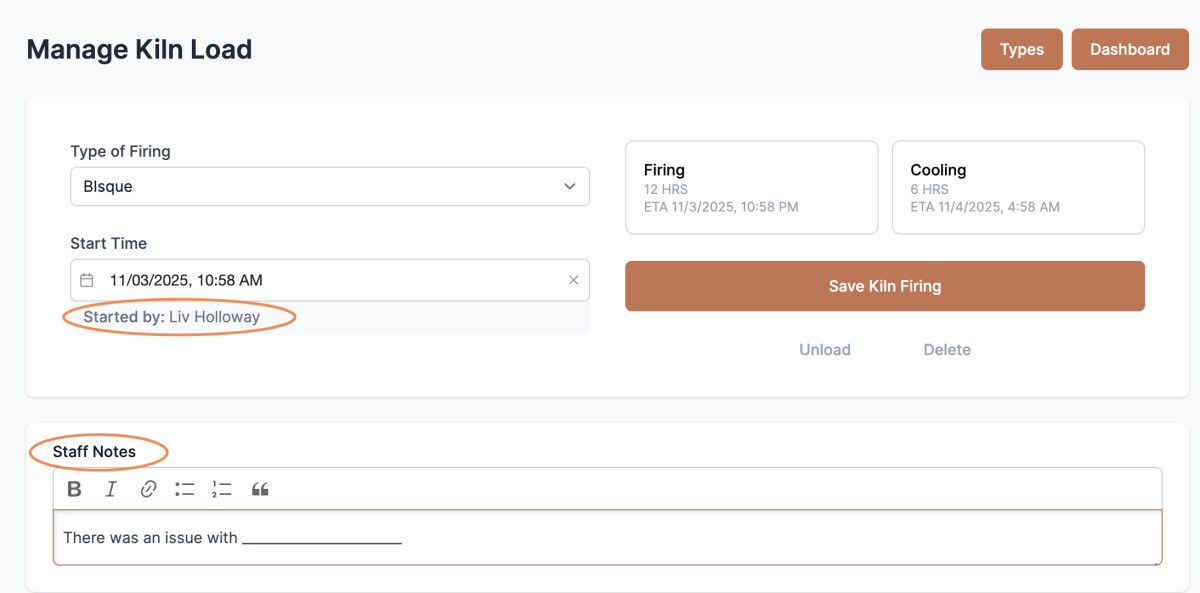
NOTE: You can now track which user loaded or unloaded kiln when you click into that particular Kiln load. Staff notes can also be added as needed.
Customizing Messages
NAVIGATE TO: Studio > App Messages > Firing & Pieces
After Piece Submit Message: This message is shown on web page after a user submits a piece of pottery for firing and should give them instructions about what to do next.
Piece Submit Need Card Message: This message is shown on web page when a user is submitting a piece of pottery but must add a credit card first.
Kiln Firing Piece Ready Email Message: Email sent to user when their pieces are marked as unloaded from the kiln (Kiln Firings > Unload).
User Perks for Firing Fees
You can assign free firing for specific users (students, employees, etc.) by number of pieces or adding up to a specific weight/volume.
NAVIGATE TO: Studio > User Perks
- Click Create New Perk
- Select Firing Fees
- Decide by Volume, Weight, Pieces, or Dollars
- Decide by a Fixed Amount or Monthly
- Decide Expire Date (NOTE: NOT needed for Monthly perks)
More details on User Perks here.