
Setting Up Piece Tracking
Before piece tracking is available for your studio to use, you will need to determine and set up your firing fees. This is where you will create pricing structures, billing schedules for piece submission, etc.
NAVIGATE TO: Studio > Pieces & Firing Fees.
Firing Fees
Automatically Charge Accumulated Firing Fees
Kiln Fire does not automatically bill for each individual firing fee immediately upon submission. This is because most firing fees are small, a few dollars or so. Instead, we have it structured for you to choose how often your studio will charge accumulated firing fees (weekly, biweekly, or monthly).
Once you select and save this setting, the system will automatically collect all unbilled work for each user at midnight on that schedule, sending an invoice and using the credit card Users already have on file. Users will receive a receipt as well as a notice if their card fails for any reason.
In the event of a failed transaction, the email will include instructions on how to log into Kiln Fire and pay for their firing fees manually.
FYI: All studio managers receive Firing Fee updates per the schedule you set above on Studio Notification Email. This would include failed transactions. You can add additional email addresses to receive those by going to Studio > Studio Settings > Studio Notification Email(s) and listing there.
Customizing Firing Prices & Glaze Notes
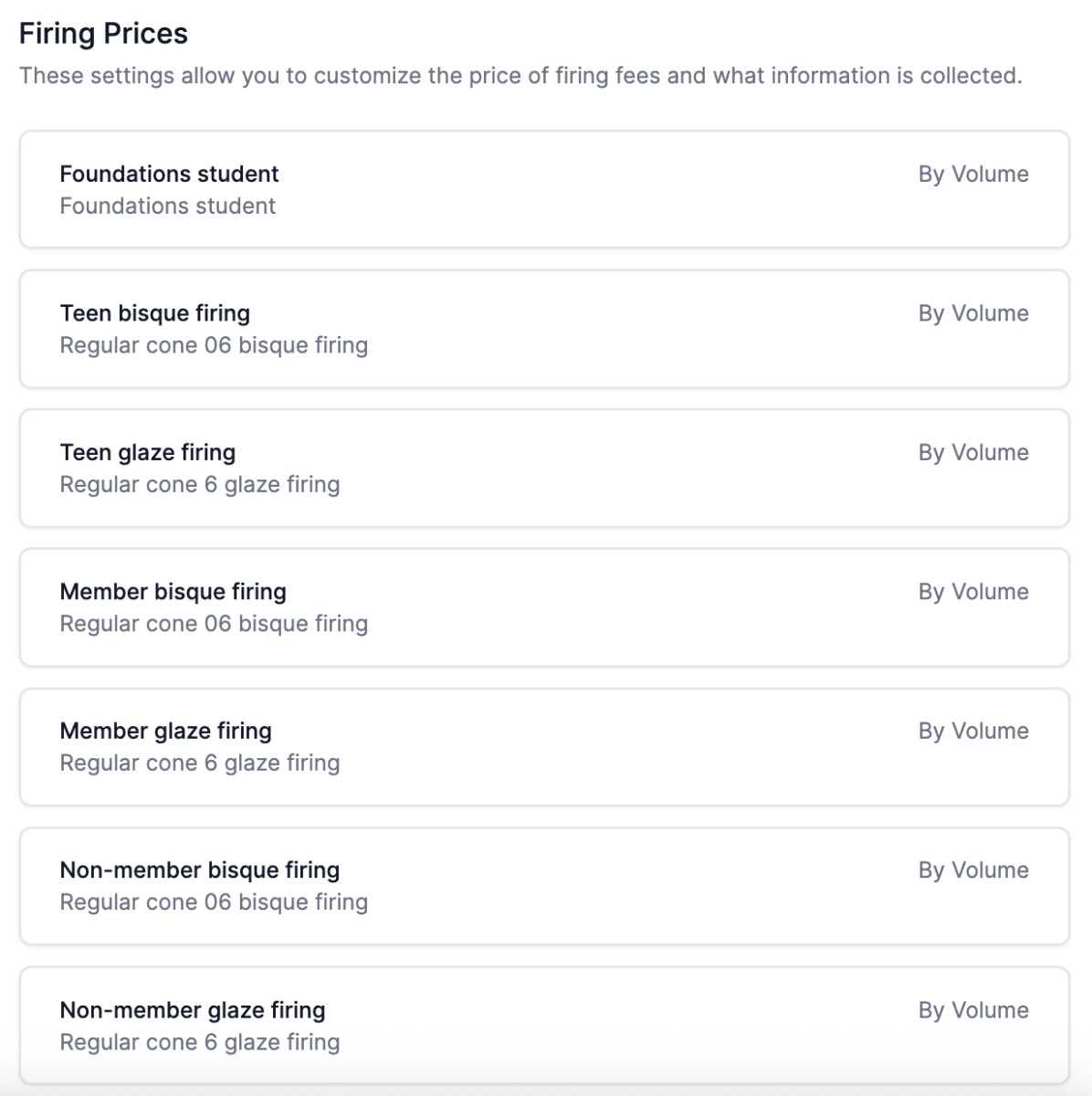
To build out different firing types for users to select when submitting piece, studios can create different Firing Prices. A lot of times, studios build a Bisque, Glaze, and maybe one other option (like Luster or something like that) here, so that when users go to submit piece, they will choose from a drop-down menu of those three. Other studios also build different types of the go-to types based on membership or class (i.e. Student Bisque, Member Bisque, etc.) if you want to build different prices based on those types.
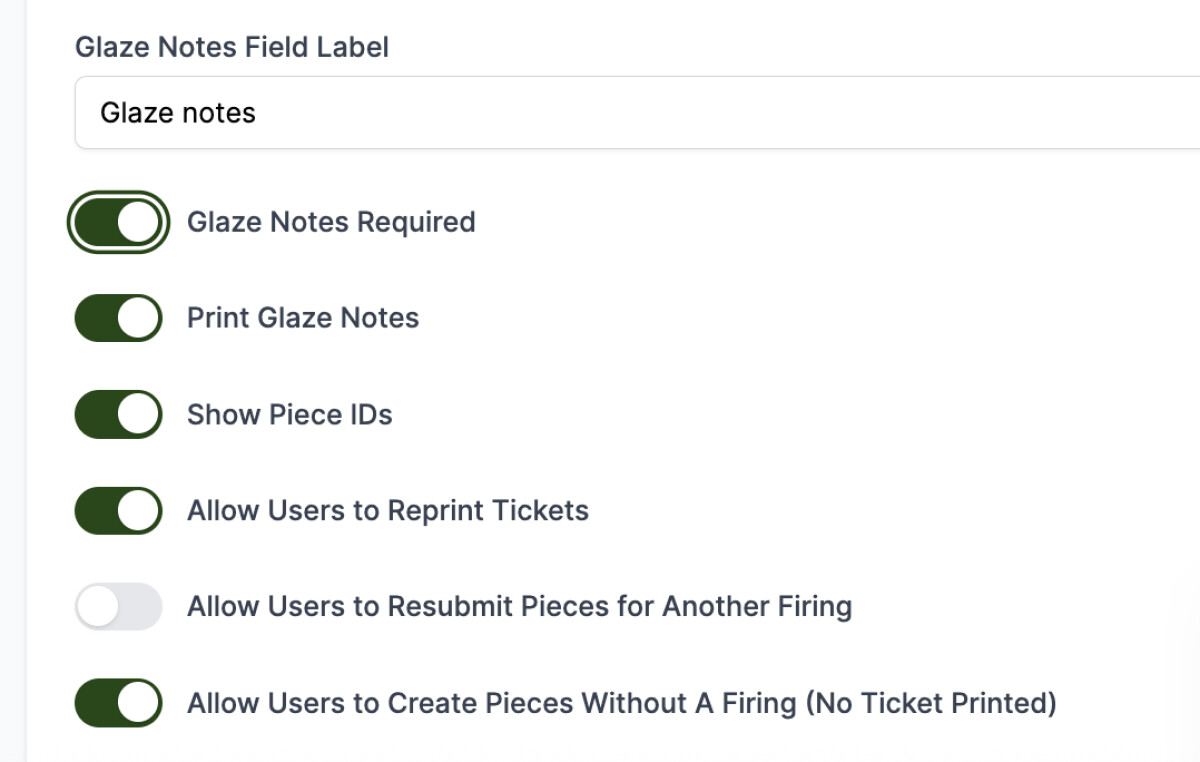
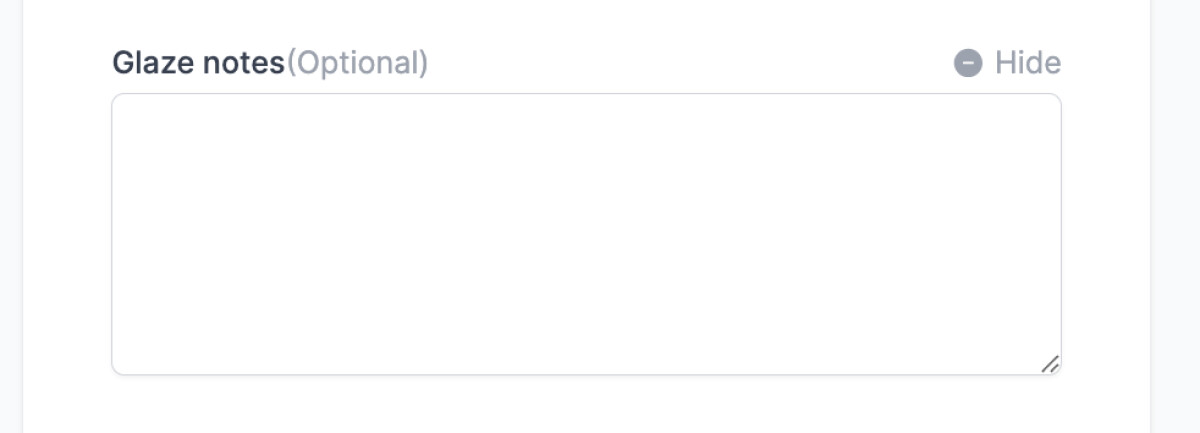
Many studios choose to change the field name for “Glaze Notes” to something that helps their customers know to put glaze preference there when submitting piece (i.e. “Glaze Notes - REQUIRED FOR GLAZING”. Note: if you toggle Glaze Notes Required ON once you've built out several Firing Prices, then it would require notes there even for other types (like bisque).
User Perks for Firing Fees
As a studio you also have the ability to assign free firing for specific users (students, employees, etc.). You can assign a free number of pieces or up to a specific weight or volume. You can find these settings in Studio > User Perks. To learn more, click here to read about user perks.
NEW: Pieces Can Be Resubmitted for Multiple Firings
When viewing a piece (Pieces > Manage Pieces > Click into a piece), there is now a button on the bottom that says "Resubmit for Firing", this allows a user to send it back to the Kiln.
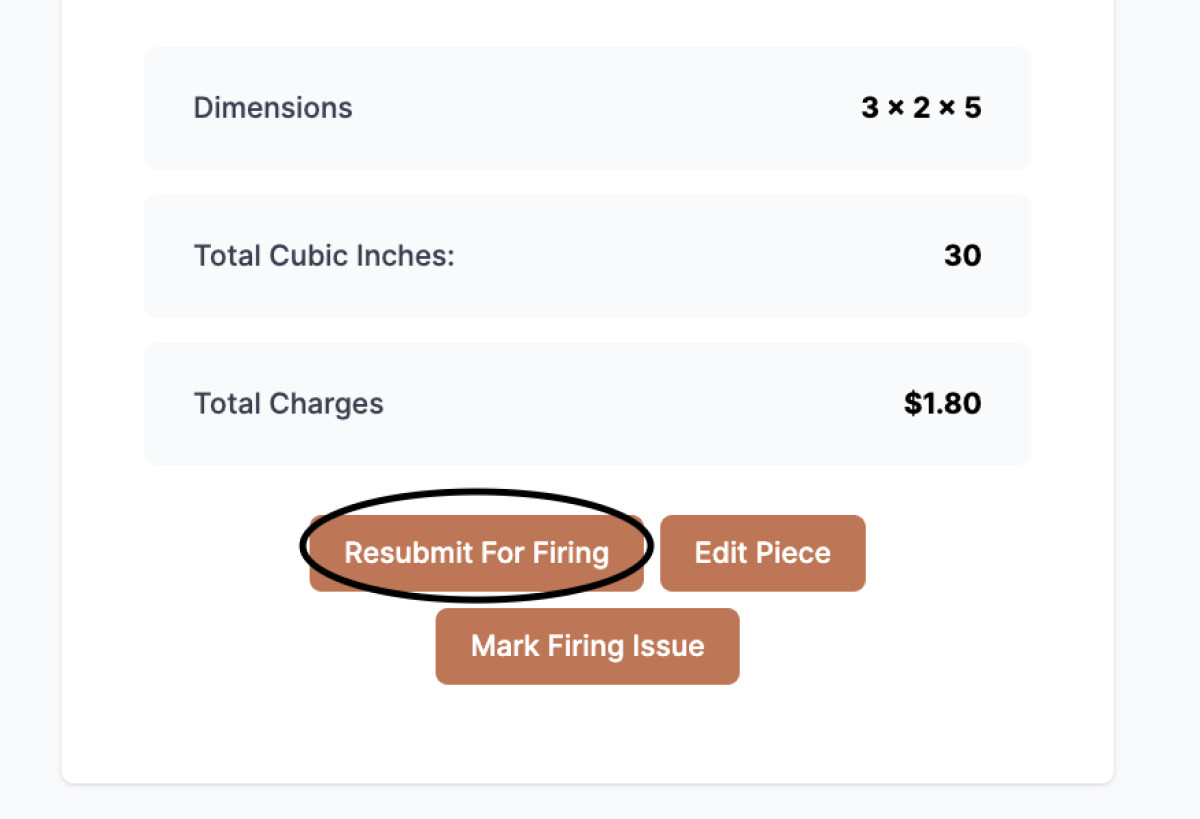
This can be useful in a number of situations:
- When a studio wants to track pieces for both Bisque & Glaze
- When a member needs to send a piece through the Glaze kiln a second time
- When a piece has been marked with a firing issue that prevents it from going into the Kiln, but it the issue can be fixed and the piece resubmitted.
Note: when submitting the piece for firing again, a new photo is required because pieces often change dramatically between phases.
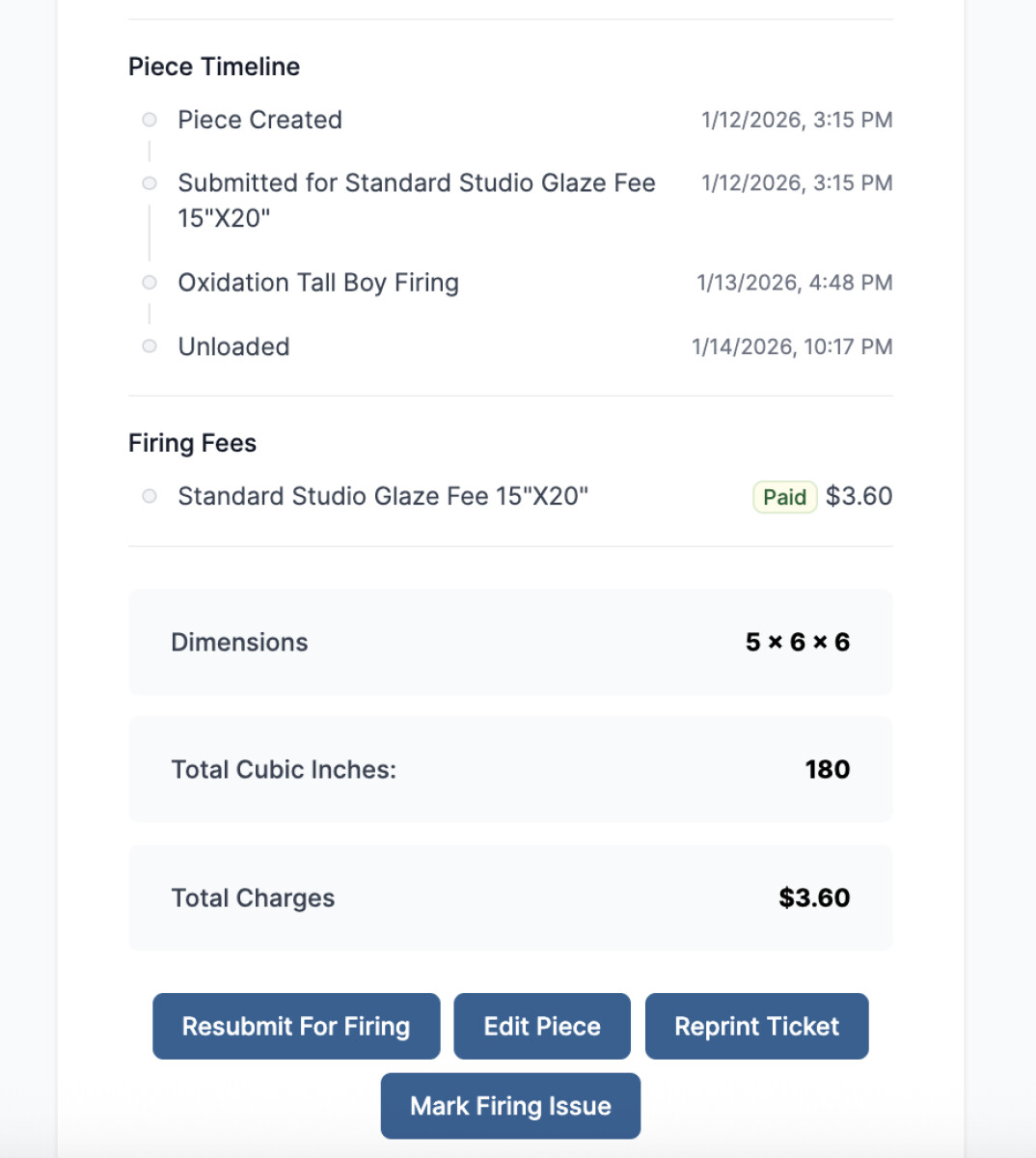
Once a piece has associated firing fees, details are displayed under the individual “View Piece” page(s) as price line items, showing their payment status (paid or unpaid if waiting for billing date), as well as displaying full timeline of piece status:
Other Firing Fee Options
Turning Off Resubmit Option
Navigate to Studio > Pieces & Firing Fees > Settings
Disable the "Allow Users to Resubmit Pieces for Another Firing" option.
Saving Pieces without Firing Fees
If users want to use Kiln Fire to start taking photos of their piece before submitting it to the kiln for a firing, they can now do that! They can choose the "No Firing, Just Save Piece" option. No ticket is printed at this time!
Once they are ready, the piece can be submitted for a firing using the "Resubmit for Firing" button as mentioned above.
If you do not want to allow users to submit pieces to Kiln Fire without a firing fee attached to it, a studio manager should visit Studio > Pieces & Firing Fees > Settings > and disable the "Allow Users to Create Pieces Without A Firing" option.
Navigating Multiple Firing Perks
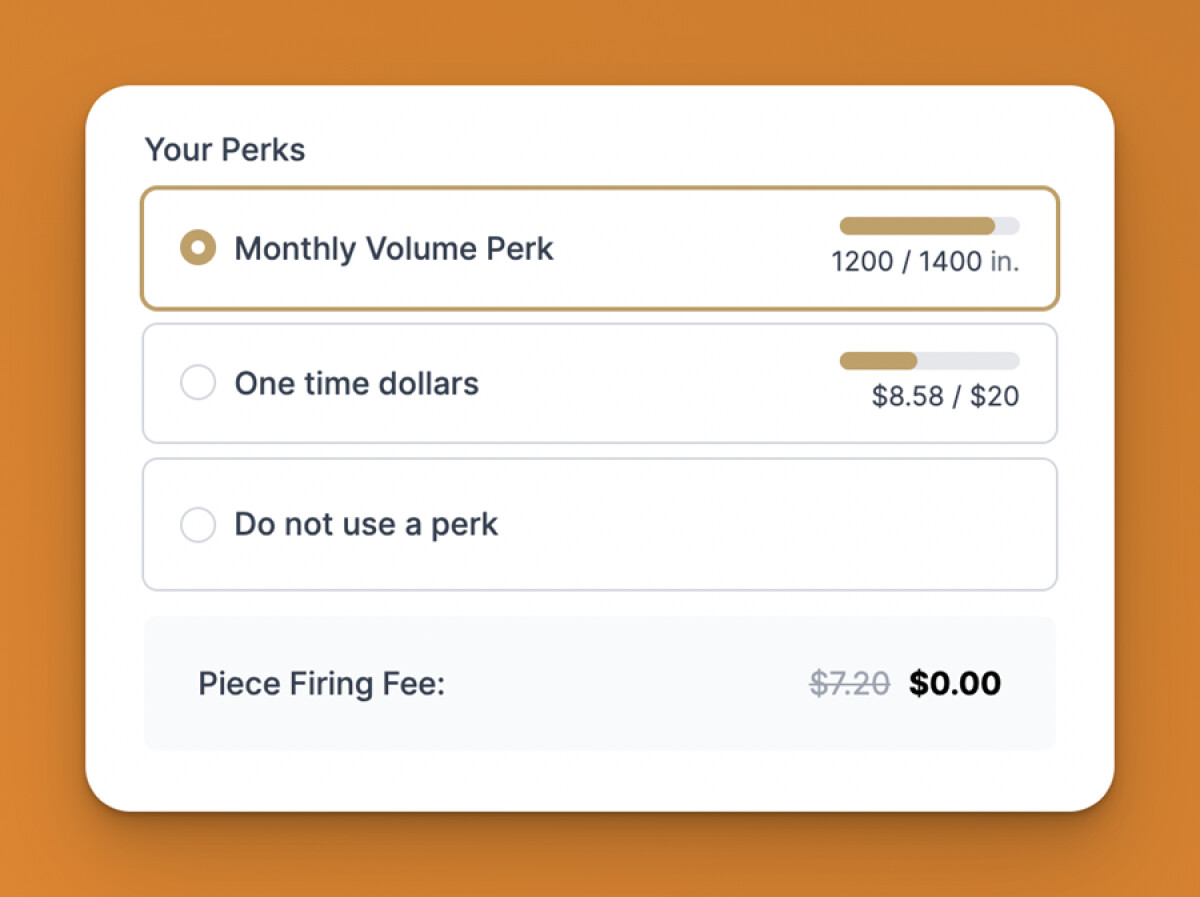
Users who may have acquired multiple firing perks, (maybe one from a membership and another from a class) will now be able to choose which one they want to use per piece. So if they are in class, and don't want to use up their membership perks first, they can choose the class associated perk as they submit their pieces.
In addition, because of the way firing fees are now stored, a piece can be partially covered by a perk! Here's some of the benefits from that:
- A user can "use up" the last tiny remaining amount of their firing perk and the rest of the firing fee would be calculated based on what is remaining after the perk is used.
- As a perk gets used for it's last amount, it can overflow into another similar perk! So, for example, if a user has 30 cubic inches of their membership firing perk left but a full class perk of thousands of inches remaining, the firing "fee" will be split between the two perks, using the remaining 30 inches and overflowing into a similar available perk.
- A user can see which perks were used for each firing fee and the amounts used when visiting the "View Piece" page.
Editing or Refunding
Note that after a firing fee is collected (i.e. payment has been processed), you cannot edit the piece. You can, however, refund it.