
Firing Ticket Package
If your studio wants to purchase additional hardware for the firing tickets, you can utilize a receipt printer and scanner. With this system, receipts are printed for each piece a User submits. When a piece goes into the kiln, studio managers can scan each ticket in Kiln Firings > Start New Firing to streamline this process.
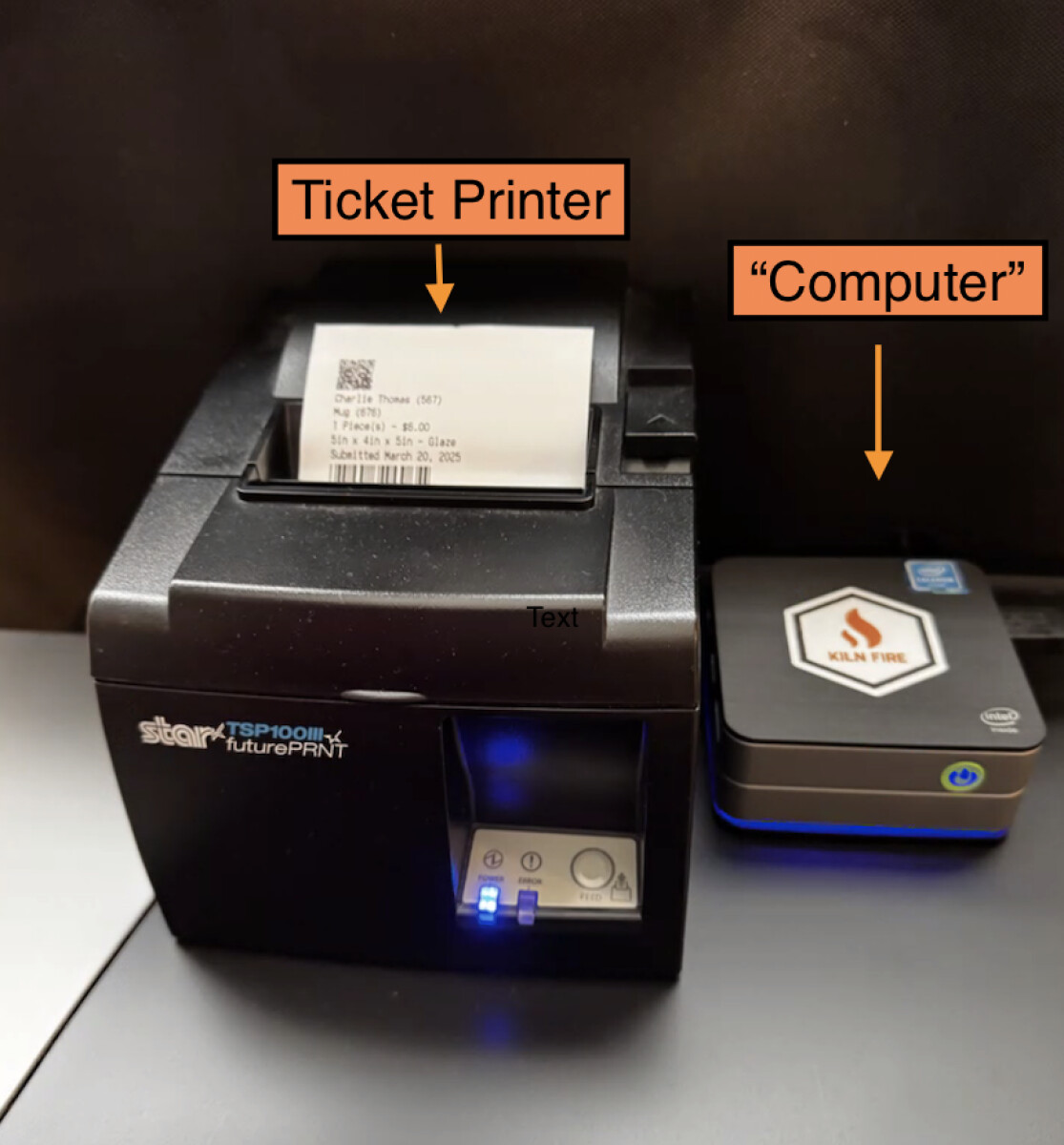
Setting Up Printer + Scanner
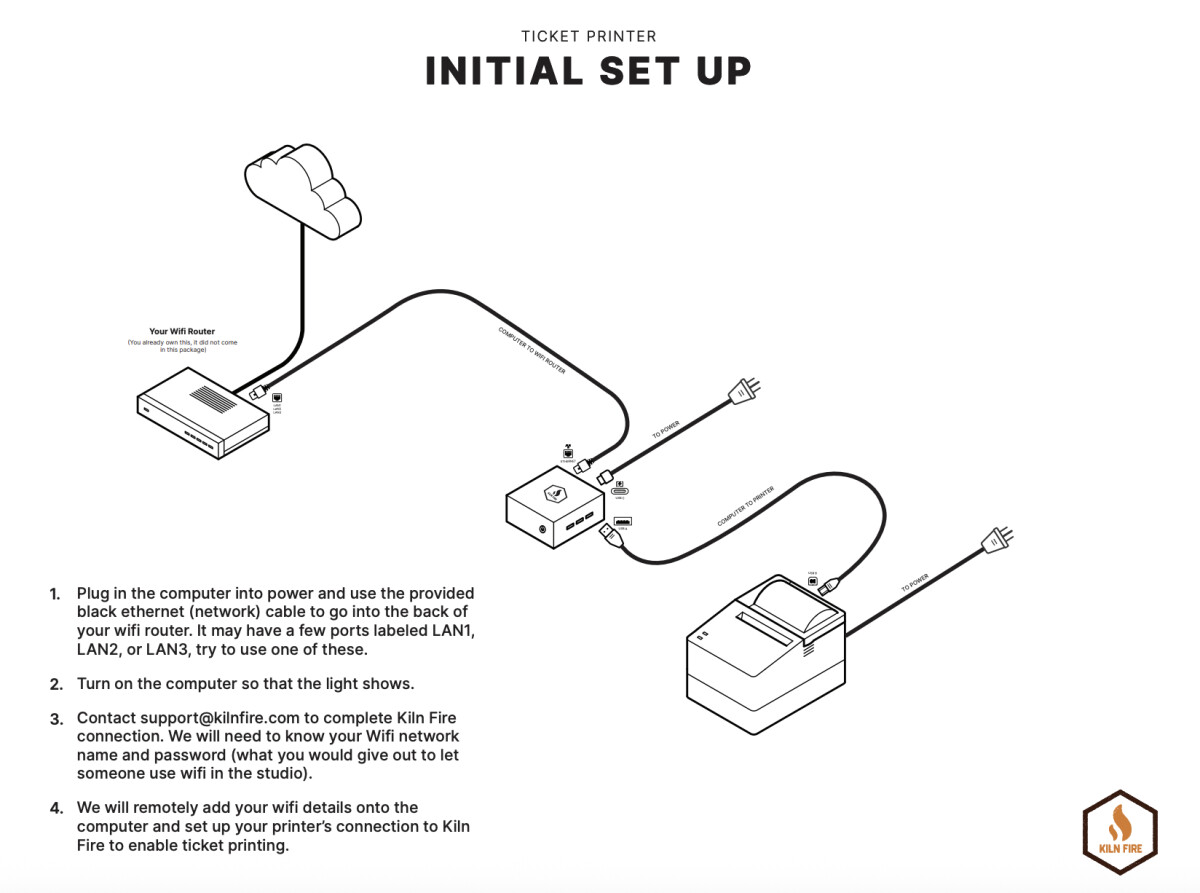
Initial Set Up:
- Plug in the computer into power and use the provided black ethernet (network) cable to go into the back of your wifi router. It may have a few ports labeled LAN1, LAN2, or LAN3, try to use one of these.
- Turn on the computer so that the light shows.
- Contact [email protected] to complete Kiln Fire connection. We will need to know your Wifi network name and password (what you would give out to let someone use wifi in the studio).
- We will remotely add your wifi details onto the computer and set up your printer’s connection to Kiln Fire to enable ticket printing.
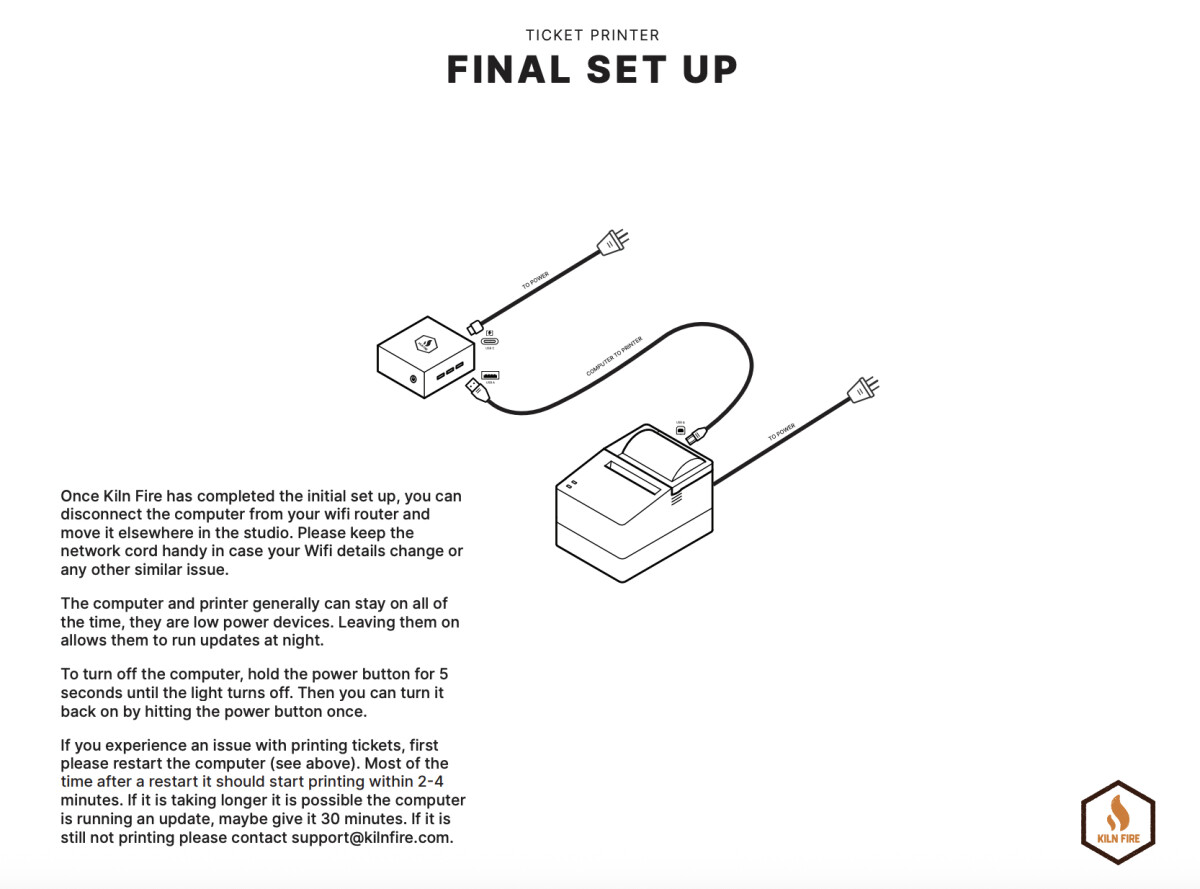
Final Set Up:
Once Kiln Fire has completed the initial set up, you can disconnect the computer from your wifi router and move it elsewhere in the studio. Please keep the network cord handy in case your Wifi details change or any other similar issue. The computer and printer generally can stay on all of the time, they are low power devices. Leaving them on allows them to run updates at night. To turn off the computer, hold the power button for 5 seconds until the light turns off. Then you can turn it back on by hitting the power button once. If you experience an issue with printing tickets, first please restart the computer (see above). Most of the time after a restart it should start printing within 2-4 minutes. If it is taking longer it is possible the computer is running an update, maybe give it 30 minutes. If it is still not printing please contact [email protected].
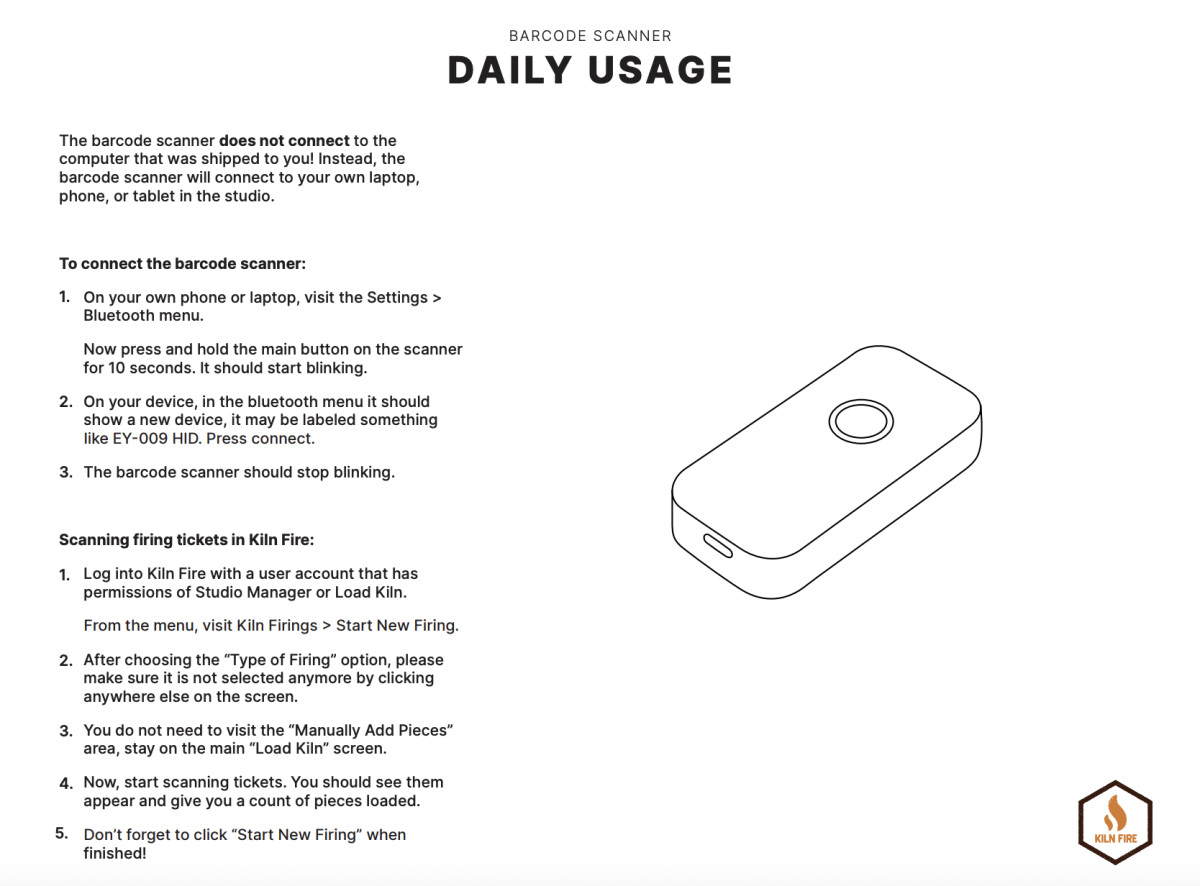
Daily Usage:
The barcode scanner does not connect to the computer that was shipped to you! Instead, the barcode scanner will connect to your own laptop, phone, or tablet in the studio.
To connect the barcode scanner:
- Take a photoor drag and dropPNG, JPG, GIF up to 10MBOn your own phone or laptop, visit the Settings > Bluetooth menu. Now press and hold the main button on the scanner for 10 seconds. It should start blinking.
- On your device, in the bluetooth menu it should show a new device, it may be labeled something like EY-009 HID. Press connect.
- The barcode scanner should stop blinking.
Scanning firing tickets in Kiln Fire:
- Log into Kiln Fire with a user account that has permissions of Studio Manager or Load Kiln. From the menu, visit Kiln Firings > Start New Firing.
- After choosing the “Type of Firing” option, please make sure it is not selected anymore by clicking anywhere else on the screen.
- You do not need to visit the “Manually Add Pieces” area, stay on the main “Load Kiln” screen.
- Now, start scanning tickets. You should see them appear and give you a count of pieces loaded.
- Don’t forget to click “Start New Firing” when finished!