
There are several automated messages built into the Kiln Fire class registration process.
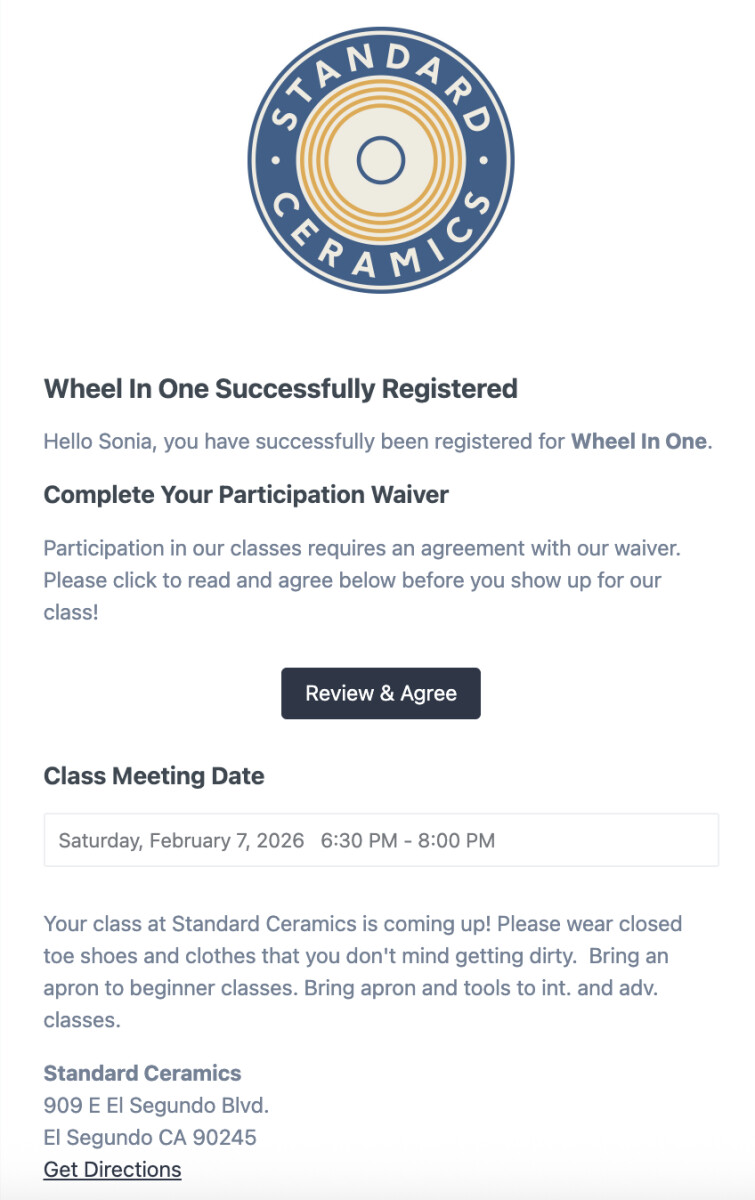
Registration Email
Subject: "(Class Name) Registration"
This email is sent immediately upon student registration for all registrants and attendees (if we have an email address for them). This is an equivalent to saying, "You're in!" This communication serves a few purposes:
- Notify that registration was successful and payment went through
- Prompt action to sign whatever waiver you set up for your studio (if enabled)
- Remind registrants of relevant dates and details for the class
- List your location and ways to get in contact with you, as well as policy reminders*
*You will want to add your own customized text for these portions in Kiln Fire itself. Go to Studio > App Messages > Class Details Message and Class Policies Message. You can also click Preview for either of these to see what your email would specifically look like and where that copy would land.
It will look like this, but with your studio's branding and customized text under dates.
Reminder Email
Subject: "(Class Name) Reminder"
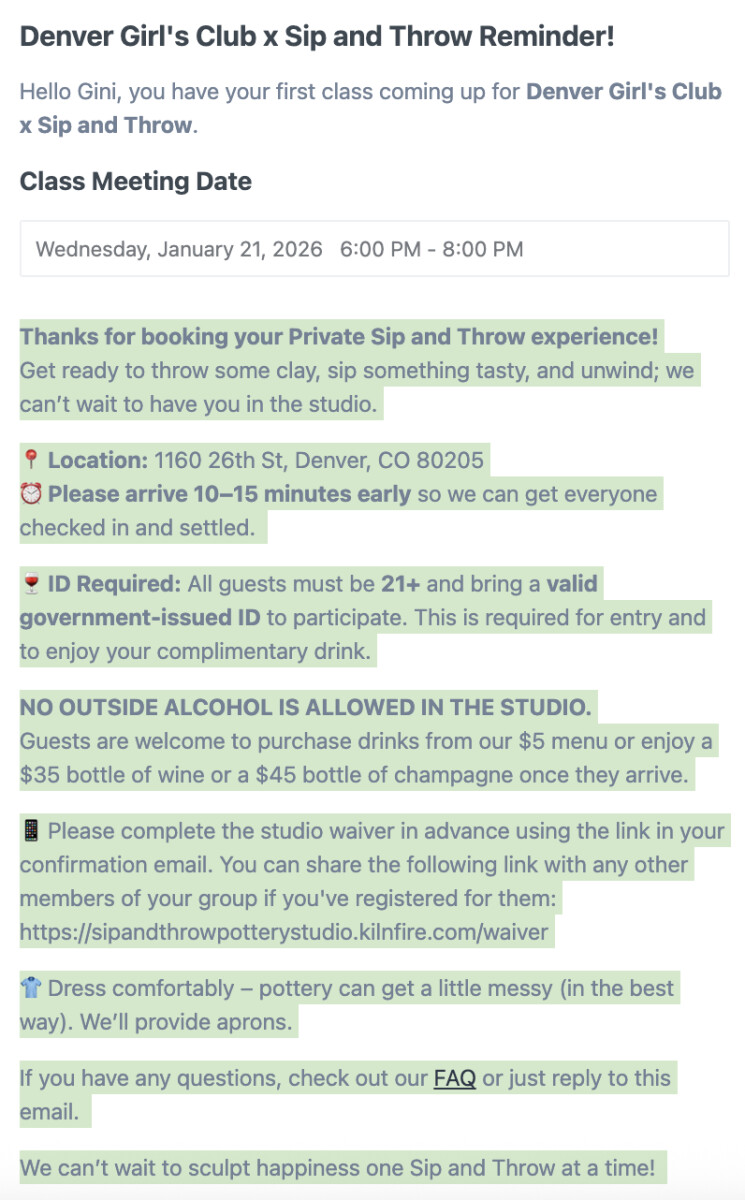
This email is sent 24 hours* before the class begins to all registered participants. It's similar to the registration email, but has slightly different verbiage at the beginning.
- Reminder for when and where to be*
- Additional prompt to sign waiver if not already signed
*Same customized text from Studio > App Messages > Class Details Message you would have created for first message
Note: Currently working on functionality for studios to be able to customize when/how far out this reminder email is delivered
It looks like this, but with your studio's branding above header and customized text where highlighted:
New User Account Email
Subject: "New User Account at (Studio Name)"
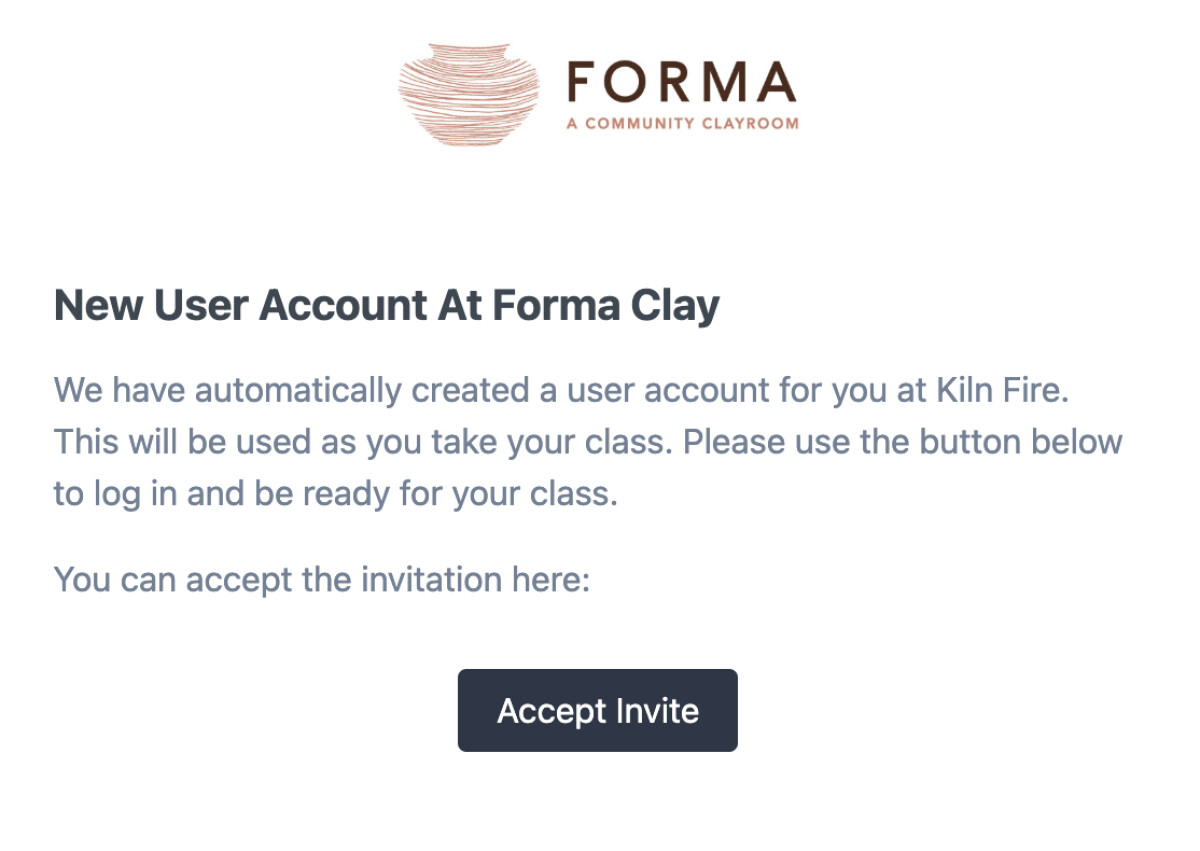
If the class or the class template has the "Automatically Create Users" option enabled, then this email is sent 12 hours before a class begins to all registered participants, inviting them to sign in to their Kiln Fire account. This is also when any User Perks they might have been assign through the Class settings activate.
- Prompts user to accept invite and sign into Kiln Fire account*
*Can customize messaging at Studio > App Messages > Class New User Message
Note: when creating/editing Class or Class Template, if "Automatically Create Users" is selected, each registrant will have a Kiln Fire account automatically created as soon as they register. The student just wouldn't know about it until this email sent out 12 hours before the class they registered for.
It looks like this, but with your studio's branding:
After Class Email
Subject: "“Thanks for visiting [Studio Name]"
NEW! You can now turn on an option for a follow-up email to be scheduled after a class ends.
To enable:
- Set up the timing: Classes > Settings > Class Settings > Days After Class to Send Follow Up Email
- Customize text: Studio > App Messages > Classes > Class Follow Up Email
Misc notes:
- If someone says they did not receive an email or they need earlier access to Kiln Fire, you can always send a general Kiln Fire log-in link. If they don't know their credentials yet, they can click "reset password" and log in that way.
- Studio managers and instructors can send Class Messages through email by clicking to manage a class on the class calendar, and then under the "Class Attendees" list there is a button for "Email Class". You can even customize subject line as well.
- You can also enable an “After Class” email that can ask for reviews, feedback, or to remind them to check out additional classes within your studio.