
Invoices
Invoices is where you can manually create and send invoices directly through Kiln Fire. This can be helpful to settle up for those flexible situations where you need to bill for something outside of the norm – no more need to switch over to Stripe or other third-party tools!
Invoices are included for free as a standard feature across all Kiln Fire accounts. If for some reason you don't see it showing up on your panel of features, you can turn it on under Studio > Studio Settings > scroll down to Invoices and toggle on.
With users that have a credit card on file already in Kiln Fire, you can opt to charge their card immediately. For non-users, you can enter in an email address to send invoice directly to them. Once the invoice is paid, you will get an email notification.
Ways to use Invoices in Kiln Fire:
- Creating Invoice Manually - Navigate to Invoices > Create Invoice, filling out the specific information and settings for your/the user's situation
- Creating Invoice through Private Events - When a Private Event request is submitted to your studio, you can select “Send Invoice” as the option to automatically request and collect remaining fees associated with the event request (per your Private Events settings). Navigate to Private Events > Booking Requests > Click into event > Select “Send Invoice” option and fill in details for that user's situation.
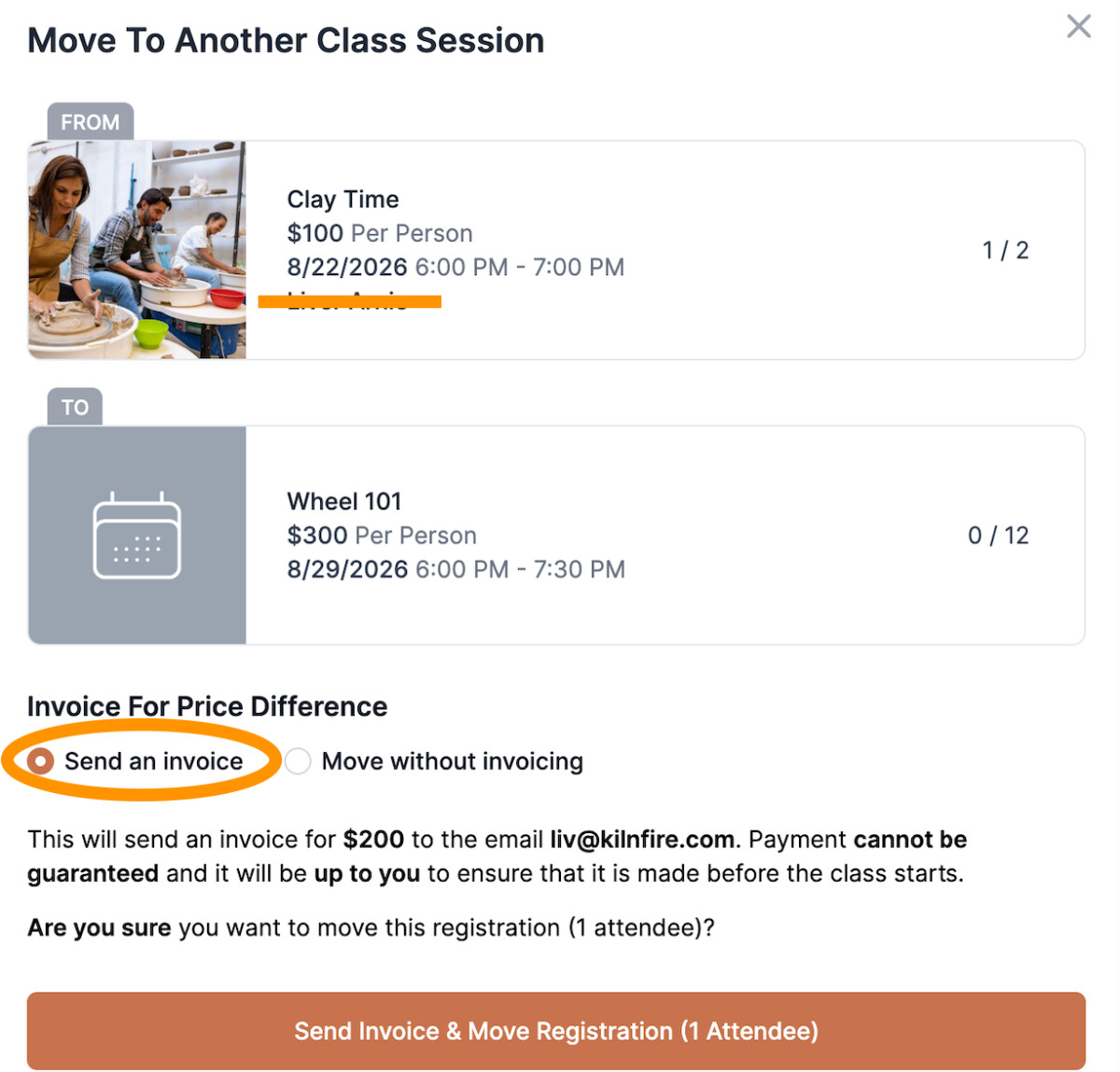
- Creating Invoice through Class Moves - In the scenario that a student wants to switch to a class that has a higher registration fee, what they previously paid will be automatically applied and then you have the option to “Send an invoice” for remaining amount. Classes > Manage Classes > Click into the class you are moving student from, scroll down to that student's Registration > Click “Action” and select “Move” > Select new class they are moving to > Select “Send an invoice”. The details of what that means will be spelled out below before you continue:
Additional Details and Instructions:
- If you need record of these specific transactions, you can export in Metrics > Transactions. That would include all Invoices.
- After an Invoice is created, you can only edit the title and description – not actual line items. It's good to be aware of that when originally creating Invoice for accuracy.
- Invoices can be categorized for different things when you are creating them, like “Firing Fee”, “Class”, etc. to help manage where that money is going
- You can have set due dates when creating Invoices – Now, 3 Days, 7 Days, etc. Note: these are set automatically for Class Moves.