Class Rosters and Taking Attendance
Navigate to: Classes > Manage Classes > click into class
Scroll down to buttons below Class Attendees that says “Attendance”. You can digitally track attendance there, or if your studio prefers to have a physical copy, go back and select Print List. This will pull up a template that shows 1.) list of attendees and their contact info and 2.) list of attendee names and each date of the class to track attendance that way.
Class Attendees vs. Class Registrations/Payments
Class Attendees
Think of this list as the attendance list, displaying a "roll call" of names for attendance to that particular class. You can manually add people to this list easily in situations you have an extra person attending without payment (i.e. a staff member's child, something like that).
Note: if you add someone that needs to still pay, you will need to gather payment separately from this list. Sometimes, instead of adding them to Attendees, studios will actually add them to "Waitlist" below on that class, then click Invite – that will automatically send the attendee an email to complete purchase. Otherwise, you can still add attendee and create a separate Invoice to complete transaction as well.
Class Registration/Payments
This is the more transactional list, showing who paid for the class (and for how many). This will display who paid for an x amount of tickets. I.e. John Smith may have purchased two tickets for himself and Jenny Smith, but only his name will show up on Registration/Payments list with a number of 2 purchases, but both John and Jenny's names should appear in Attendees list.
Move Registrations Between Classes
(NEW as of July 2026)
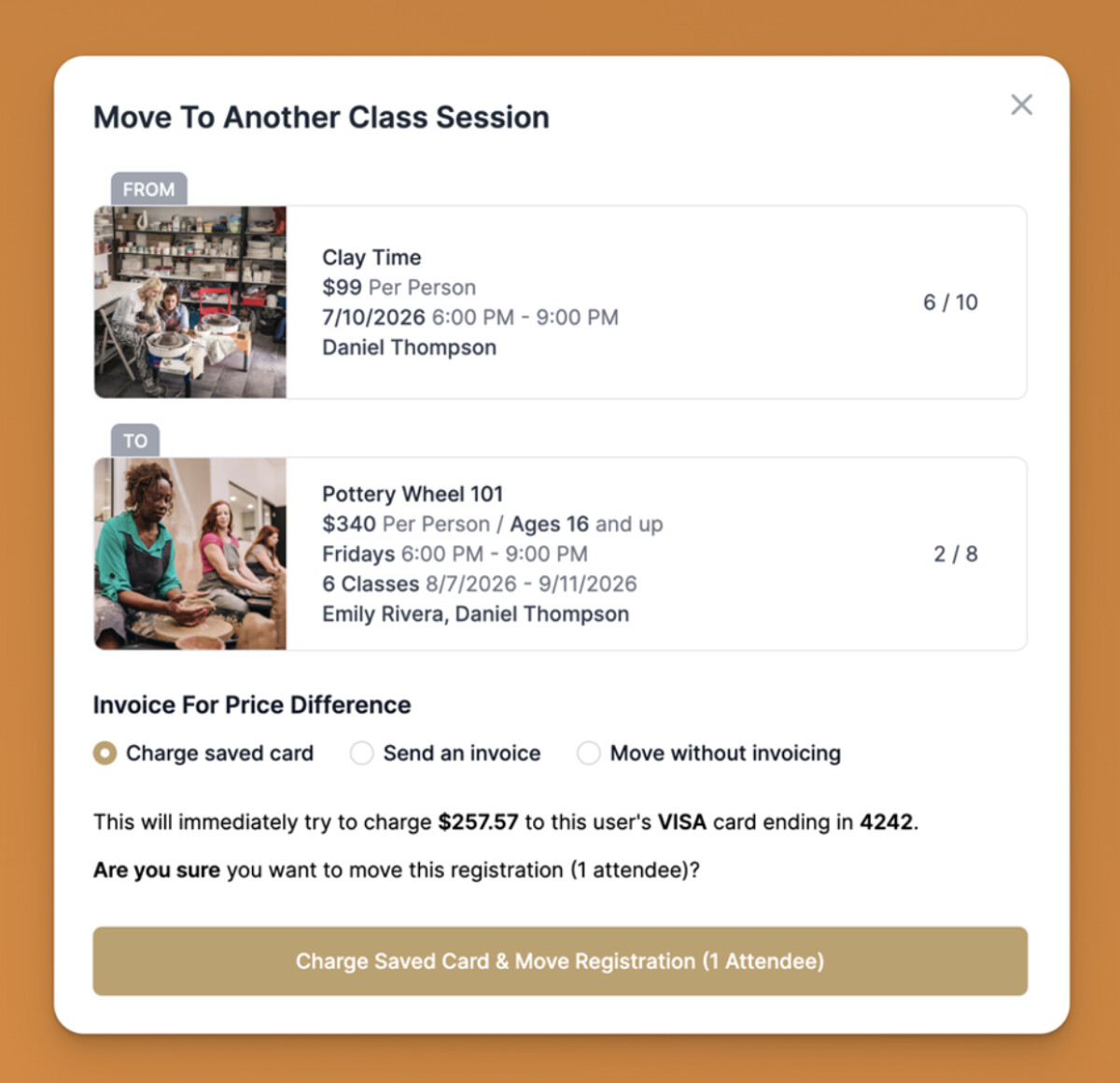
You can now move a registration between completely different types of classes (templates), not just another session of the same class.
You can move a student one of two ways:
- Classes > Manage Classes > Click into the class, scroll down to Registrations and click “Action” in that person's row > Select Move
- Classes > Registrations > Search name of person > Click “Move”
- If the class they are moving to is the same price, there will be no refund or invoice necessary and registrant will be moved
- If the class they are moving to costs more, you can choose to either automatically charge a card on file for the difference (if the registrant is also a user with a card on file) or send an invoice via email
- If the class they are moving to costs less, Kiln Fire can automatically issue a refund
- You can also move without creating any invoices, charges, or refunds at all if needed
This flexibility gives your staff the ability to handle each situation in the way that makes the most sense for your customer and your studio.