
If your studio offers a one-time class but recycles the same content and format multiple times a month or week, there are ways to make scheduling those classes easier in Kiln Fire.
- You will want to create a Class Template for this type of class, similar to the classes that are multiple weeks long. Follow the directions for building Class Templates here.
Once Template is created and saved, head to Manage Classes
For a version where this class is offered on the same predictable weekly or monthly schedule, you can drag-and-drop its first instance in the calendar to begin scheduling.
- Make sure the "View" menu is set to "Week" or "Day"
- Drag and drop on the daily timeline to select date and time
- A popup menu will appear, Select Class Template
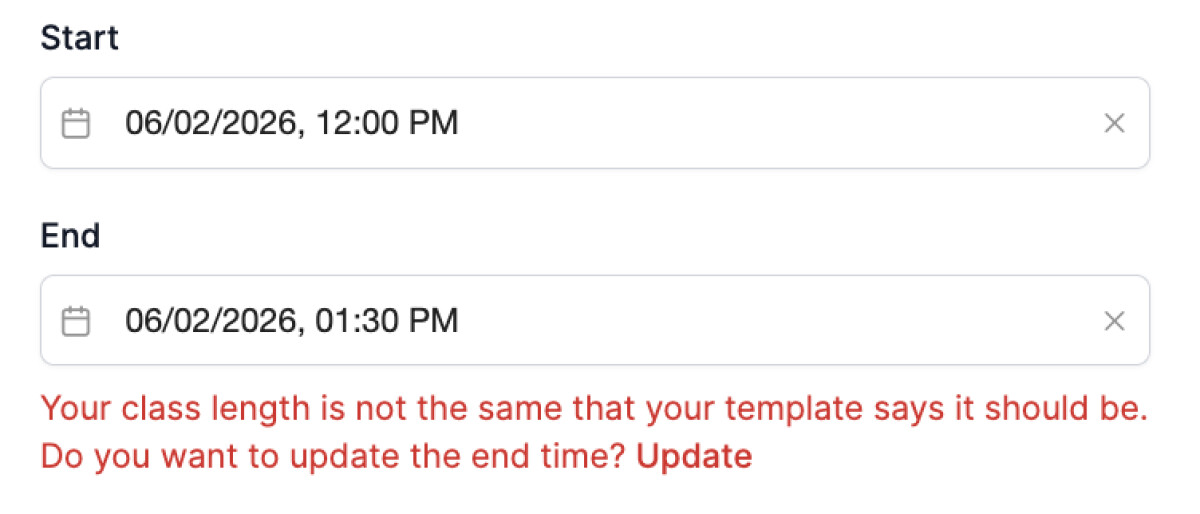
- Confirm start and end time (note: if this doesn't align with the Template you created, you will get a little error stating that and asking you to update timing to match Template)
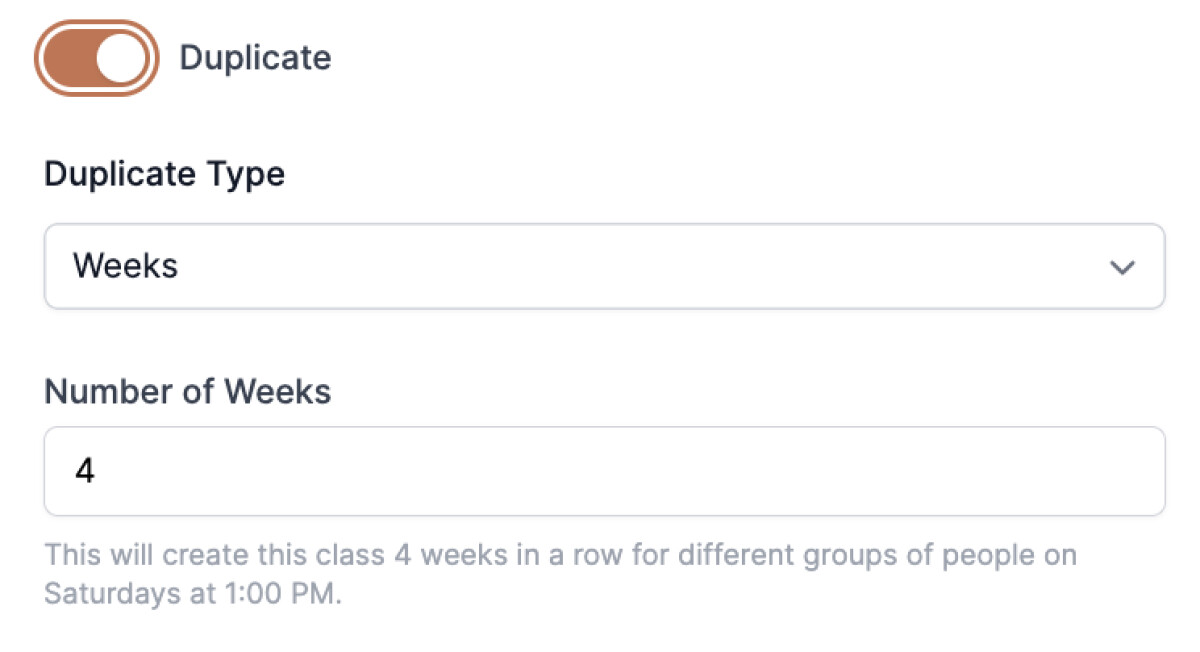
- Toggle "Duplicate" On and select Weekly or Monthly as well as number of instances – this will schedule them that many weeks or months in a row
When you schedule these groupings together, you can edit any one of them at any time by clicking into any one of the instances in "Manage Classes" calendar space to select a date/time to adjust.
NOTE: The "Repeat Class Meetings" button is different from the duplicate functionality described above! This is used when you have a single class, with the same group of students, that will take the class for multiple weeks in a row (i.e. an 8-Week Wheel Class)