
NAVIGATE TO: Pickups > Pickup Types
Think of this as the “rules” for Pickups – the settings here will determine how the forms will work for people submitting a Pickup. A "Default" option will already be built in, but we encourage you to edit this one tailored to your studio. You can also add different types as needed.
- Pickup Type Name and Description: Give this pickup type a name and description that distinguishes it from others.
How to Charge: Decide whether you will charge money for pieces and how much you will charge.
- No Charge: Price is included in the class or event, so with this you are only collecting contact information and piece information without payment.
- Per Piece Charge: You set a flat fee for each piece. Typically $2-$10.
- Choose Firing Price: With this method, users will likely need to also enter the dimensions or weight of the piece for the price to be calculated. If you don't already have Firing Prices you would create those in Studio > Firing Fees. Once that is set, you can select "Choose Firing Price" in Pickup Type form to charge that for Pickups.
- Staff Set Price: Studio staff will decide the price of each piece submitted after submitting. This works well when used with our Point of Sale functionality where you can set a price for this pickup there and then use an in-person credit card to charge for the group of pieces.
When to Charge: This only appears as an option if "How To Charge" above is set to Per Piece, Choose Firing Price, or Staff Set Price.
- Immediately On Customer Device: A form will be shown that asks the customer to fill in their credit card details on their own device. The amount will be charged right away.
- After Submission by Staff: No charge will happen right away, but that staff may need to enter a price for it. This means you will either be 1.) using our Point of Sale system to accomplish this or 2.) collecting fees some other way, and in that case you can just “Mark as Paid” these items in Kiln Fire.
- Allow Group Completions: When this is enabled, a group of people (like a family) may want to submit pieces together (this is only relevant if there is a maximum amount of pieces or some pieces are free and people need to pay for something). When this setting is toggled to ON, this means that multiple pieces can be submitted and charged in different ways. For example, the first piece might be included in the one time class but if they want to complete more pieces, they will need to pay for additional pieces.
- Max Pieces for Pickup: You can determine how many pieces a person can pick up for themselves or group.
Allow Shipping Requests: If your studio is willing to ship pieces to customers, toggle the setting to ON. You can then set the flat fee price you will charge for shipping.
Pieces Ready Mode: This is how you configure the timing of when people will be notified that their piece is ready to ship.
- Manual: Staff will need to manually click on “Mark as Ready” when a Pickup is ready or by using "Scan" (if using Kiln Fire hardware).
- Automatic After Firing: This involves the Kiln Fire hardware purchased separately (a receipt printer and scanner). A studio is able to scan piece tickets as they are loaded into the kiln. Those are found in the Kiln Firings tab in the Kiln Fire app. When choosing this option, you will also need to select Kiln Firing Types.
- Automatic Days After Created: This means that people will begin being notified a certain number of days after the event they attended.
Number of Messages: You have the ability to send people up to 5 reminder messages that their piece is ready for pickup. There are a few settings to put in place alongside this:
- Days Between Messages: How many days go by before another message is sent.
- Days After Reminder Pickup is Suggested: Pickup messages will say "Your pieces are ready at [STUDIO NAME]! Pick them up in the next X days. [LINK]"
- Days After Final Reminder Pickup is Required: The final pickup message will say "Final Reminder! Your pieces are waiting at [STUDIO NAME]. If your pieces are not picked up in the next X days, we may have to throw them away. [LINK]"
- Click Preview Piece Pickup Timeline to walk through how the messages and dates will work based on how you set them above
- Description Field Label: Title the text box that will appear at the end of Pickup form for users to briefly describe their piece. Typically, this just says "Piece Short Description". This helps distinguish and find later for Pickup.
- Notes Field Mode: Require or make optional to add description.
- Notes Field Label: Call it "Notes" or something else – sometimes studios want Glaze specifications listed here.
- Success Text: Determine what web page text says upon submission.
NEW: You can now add Custom Fields to ask additional questions specific to your studio. Scroll down to “Custom Fields” and select "Add Custom Field – you can choose questions via Text or Paragraph response as well as Dropdown and Checkbox.
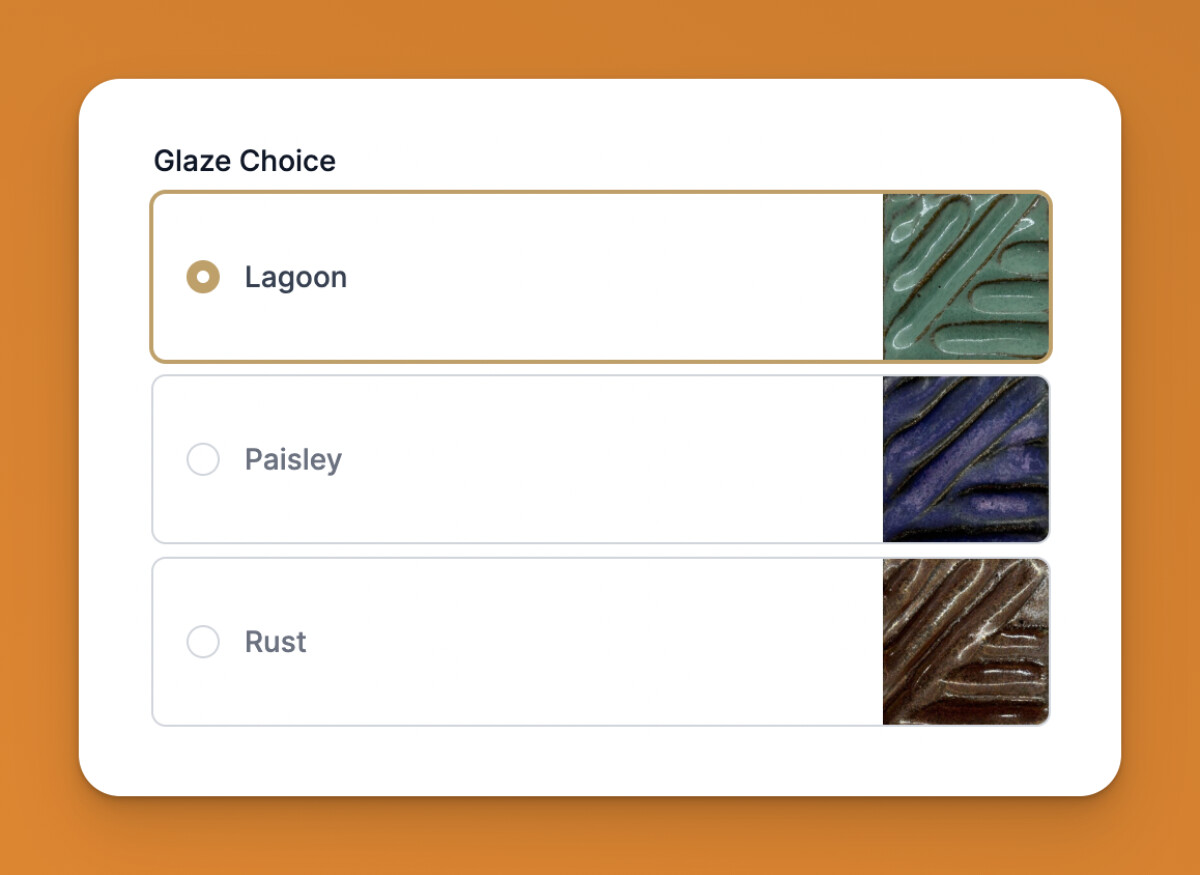
NEW: You can now add Glaze Choices for Pickup forms. Under “Glaze Notes Field Mode”, you can select Images (to show pictures of Glaze choices) or Dropdown to list them. If by adding this you no longer need the open text field (Notes), you may want to change the Notes Field Mode to “Hidden”.
Once you have made decisions about a Pickup Type, click on Save Pickup Type.